
Minecraft performance is not one problem with one fix. It is two separate machines running side by side: a client that draws frames, and a server that simulates the world, even when that server is the hidden thread inside your own single-player game. Tune the wrong machine and nothing improves, no matter how many mods you install or how much RAM you throw at it.
This guide is the long version. It is the single page you bookmark and come back to when something is slow and you want to know exactly why and exactly what to change. It covers both machines end to end: how frames are produced and where they bottleneck, the performance mod stack that actually moves the needle, the in-game settings that matter and the ones that do not, the server tick budget and what eats it, the Aikar JVM flags and the RAM sweet spot, chunk pre-generation, and how to profile so you stop guessing.
Everything here is pinned to 26.2 Java Edition. Where advice splits between vanilla and modded, or between single-player and a dedicated server, that split is called out. If you want a faster, narrower path for one specific symptom, the focused companion guides are linked throughout.
This guide is maintained against the current Minecraft release, not frozen to whatever version it launched with. Mod versions below were checked against the Modrinth API on 2026-09-03, against Minecraft 26.2. If a mod's build lags behind the current release, that is stated plainly rather than glossed over.
The fastest way to waste an afternoon is to optimize the wrong half of the game. If your FPS counter is high but the world feels sluggish, no graphics mod on earth will help you, because your problem is on the server side. Diagnose before you tune. The very next section shows you how.
Diagnose first: FPS, TPS, or network
Before changing anything, find out which of three problems you have. They feel similar to a frustrated player but have nothing in common under the hood.
FPS: how many frames per second your client draws
Frames per second is purely a client measurement. It is how many complete images your computer renders each second. Low FPS looks like choppiness, screen tearing, and a stutter when you spin the camera or walk into fresh terrain.
- Check it: press
F3and read the number top-left, or watch the graph. - Healthy: at or above your monitor's refresh rate (60, 120, 144, and so on).
- A problem when: it drops well below 60 under load, or hitches hard on movement.
FPS is bounded by your CPU and GPU. It has nothing to do with the server.
TPS: how many ticks per second the server simulates
Ticks per second is a server measurement. Minecraft's world logic runs on a fixed clock of 20 ticks per second, one tick every 50 milliseconds. Mob AI, redstone, block updates, hopper transfers, plant growth, and water flow all advance one step per tick. If a single tick takes longer than 50 ms to compute, the next tick starts late, and the world falls behind real time.
In single-player there is still a server: an integrated server thread inside your game process. So yes, you can have TPS lag in single-player even at 300 FPS.
- Check it: run
/spark tps(with the spark mod installed) or read the server console. Some setups also surface it onF3. - Healthy: a flat 20.0 TPS.
- A problem when: it sits below 19, and a serious problem below 15. The world will feel like it is running in syrup: blocks break a beat after the animation finishes, mobs rubber-band, farms slow down.
TPS lag is independent of FPS. A potato can hold 20 TPS in an empty world, and a monster PC can drop to 8 TPS in a base stuffed with mobs.
Network: latency between you and a remote server
This only exists in multiplayer. Both FPS and TPS can be perfect while your connection to the server is slow.
- Check it: the Latency or ping reading on
F3or the multiplayer server list. - Healthy: under 80 ms feels instant; under 150 ms is fine.
- A problem when: above 150 ms actions feel delayed, and above 300 ms it is barely playable. If only you are affected and other players are not, it is your connection.
The one-line test: open
F3and look at three things. FPS number, TPS reading, and Latency. The one that is out of range tells you which half of this guide to read. Everything downstream depends on getting this right. The dedicated walkthrough is in how to fix Minecraft lag, stutters, and freezes.
Part one: the client (FPS)
How a frame is actually produced
To know where frames go missing, it helps to know how one is built. Every frame, your client roughly does this:
- Game logic and state sync from the integrated or remote server (entity positions, block states).
- Chunk meshing: changed chunk sections are turned into vertex data the GPU can draw. This is CPU work.
- Culling: the engine decides which chunks and entities are potentially visible and skips the rest.
- Draw calls: the visible geometry is handed to the GPU in batches.
- The GPU rasterizes that geometry into pixels, applies lighting and any shader passes, and presents the finished frame.
A frame is only as fast as its slowest stage. That is why "more GPU" or "more RAM" so often does nothing: if your bottleneck is single-threaded chunk meshing on the CPU, a faster graphics card sits idle waiting for work.
CPU-bound vs GPU-bound
This distinction is the heart of client tuning.
- CPU-bound: the processor cannot prepare frames fast enough. Symptoms: FPS does not improve when you lower graphics settings or resolution; FPS tanks specifically when chunks load or many entities are nearby; vanilla Minecraft pins one core. Most vanilla and modded Minecraft is CPU-bound because chunk building and the render path are heavily single-threaded in vanilla.
- GPU-bound: the graphics card is the limit. Symptoms: FPS scales directly with resolution and graphics settings; shaders crush your frame rate; the GPU sits near 100 percent usage. Shader packs and very high render distances push you here.
How to tell which you are: open F3, or better, a hardware overlay (MSI Afterburner, the in-game F3 graphs, or the spark mod's /spark healthreport). If GPU usage is pinned near 100 percent, you are GPU-bound. If GPU usage is low while FPS is poor, you are CPU-bound, and the single biggest fix is the mod stack below.
Vanilla 26.2 leans CPU-bound for most players because the core render pipeline does not use modern OpenGL batching well. This is precisely why Sodium produces such dramatic gains: it rewrites that pipeline to cut CPU overhead and draw calls, often doubling or tripling FPS on identical hardware without touching your GPU.
The essential performance mod stack
If you run Fabric (or Quilt), installing the right mods is the highest-leverage thing you can do for client FPS, by a wide margin. None of these change gameplay. They are pure engine improvements. Install them in this order and verify the game launches after each.
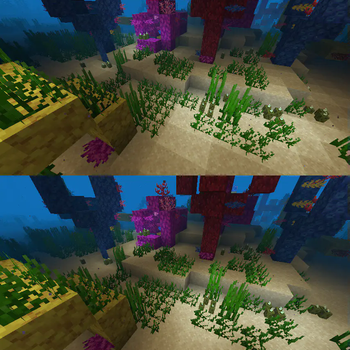
Sodium's own comparison shot: the optimized renderer (top) produces a pixel-identical scene to vanilla (bottom) while cutting the CPU cost of drawing it. Image: CaffeineMC / Sodium project.
The core four
- Sodium (
mc26.2-0.9.2-beta.1for 26.2). A complete rewrite of the rendering engine. Cuts CPU overhead, batches draw calls, and modernizes the OpenGL path. This is the single largest FPS gain available and the foundation everything else builds on. Frequently doubles or triples FPS. - Lithium (
mc26.2-0.25.3for 26.2). Optimizes game logic and the tick loop: mob AI, pathfinding, block ticking, fluid behavior, and more, with no behavior changes. Helps FPS in entity-heavy areas and, crucially, also raises TPS. Lithium is one of the rare mods that improves both halves of the game. - FerriteCore (
9.0.0, covers 26.1 through 26.2). Slashes memory usage by deduplicating data Minecraft stores wastefully (block states, NBT, and so on). Less memory pressure means fewer and shorter garbage-collection pauses, which is what most "random freeze" stutter actually is. - EntityCulling (
1.10.5for 26.2). Uses an asynchronous ray-cast to skip rendering entities and block entities that are fully hidden behind walls. Large gains in builds with many chests, item frames, or mob farms out of sight.
High-value additions
- ImmediatelyFast (
1.16.4+26.2). Speeds up immediate-mode rendering: text, the HUD, item models, particles, and signs. The payoff shows up most in GUI-heavy modpacks and inventory-heavy scenes. - ModernFix: as of this check, the newest build is
5.27.22+mc26.1.2, one release behind. There is no 26.2 build yet. It still works fine on 26.2 in practice for most packs since it targets loading and memory behavior rather than render internals, but treat that as unofficial until a 26.2-tagged release lands. Faster startup, lower memory, dynamic resource loading, and a pile of small fixes that matter more as modpack size grows. - Moonrise (the standalone port of Paper's chunk system to Fabric and NeoForge, by spottedleaf;
1.1.2+151ce65for 26.2). Rewrites chunk loading, generation, and saving to be multithreaded and far faster. This directly targets the chunk-load stutter that hits when you explore. It is one of the most impactful additions for both single-player exploration and Fabric servers. Note: Moonrise supersedes the older C2ME approach for many setups; do not stack two chunk-system rewrites, pick one.
Do not run two mods that do the same job. Sodium and OptiFine are mutually exclusive and will conflict. Lithium and other tick-optimizers can overlap. Two chunk-system rewrites (Moonrise plus C2ME) can fight each other. Pick one mod per concern. When a modpack already bundles a performance mod, do not add a second copy or a competitor.
For shaders, you also want Iris (1.11.2+26.2, the shader loader that is Sodium-compatible). Iris and Sodium are designed to work together; this is the modern replacement for OptiFine's shader support. For the full annotated list with download links and load order, see the complete Fabric performance mod stack. If you are weighing Sodium against the Forge/NeoForge equivalent, the Sodium vs Embeddium comparison covers which to use on which loader, and if you are still running OptiFine, OptiFine vs Sodium in 2026 explains why the switch is worth it.
A note for Forge and NeoForge
The mods above are Fabric-first, and Sodium itself now ships NeoForge builds directly, so NeoForge users on 26.2 can often run Sodium and Lithium natively rather than reaching for ports. Embeddium, the older Forge-side Sodium port, has not shipped past 1.0.15+mc1.21.1: it has no 26.x build and is stalled two major releases behind. If your modpack is still on Forge (not NeoForge) and needs a Sodium equivalent, check Embeddium's current status before relying on it for 26.2. FerriteCore and EntityCulling are cross-loader and current for 26.2 either way.
In-game video settings that actually matter
Mods aside, a handful of vanilla settings dominate your frame rate. Most of the others are rounding error. Here are the ones worth your attention, ranked by impact.
One 26.2 note before the list: Minecraft now ships an experimental Vulkan renderer behind a new Graphics API option in Video Settings. It is opt-in, early, and not a guaranteed FPS gain yet; our Vulkan renderer guide covers what it is, how to enable it safely, and how it interacts with the mod stack below.
Render distance (the big one)
Render distance sets how many chunks out from you are drawn. Its cost does not grow linearly. The visible area is a square (technically a circle clamped to a square) of chunks around you, so the number of chunks scales roughly with the square of the radius.
- Going from render distance 8 to 16 roughly quadruples the chunk count to mesh and draw.
- Dropping from 16 to 12 cuts rendered chunks by about 44 percent.
- Dropping from 12 to 8 cuts them by more than half again.
This is why render distance is the nuclear FPS dial: it always works because it directly reduces both CPU meshing and GPU draw load. With Sodium installed you can usually afford a higher value than vanilla allowed, but the square-law cost never goes away.
If you only change one setting, change this one. Drop render distance until FPS is comfortably stable, then raise it one step at a time until it starts to hitch, and settle one step below that. The full breakdown of how this differs from simulation distance is in render vs simulation distance.
Simulation distance (FPS and TPS)
Simulation distance is separate from render distance, and the distinction trips up almost everyone. Render distance controls what you see. Simulation distance controls what the server ticks: which chunks have active mobs, growing crops, running redstone, and flowing fluids.
- You can render far and simulate near. A render distance of 16 with a simulation distance of 8 draws a wide vista but only simulates the world close to you. This is often the best of both: a pretty view at a lower tick cost.
- On the client, lowering simulation distance reduces the integrated server's tick load, which helps single-player TPS and indirectly smooths FPS.
- Default simulation distance is around 8 to 12 depending on your setup; many players are comfortable at 6 to 8 in single-player.
Graphics: Fast vs Fancy vs Fabulous
- Fast disables transparency-heavy effects (clouds simplify, leaves become opaque, distant water and translucency are cheaper). Meaningful FPS gain on weak GPUs.
- Fancy is the standard balanced setting.
- Fabulous is the most expensive; it uses extra framebuffers for proper transparency layering and costs significant GPU performance. It also conflicts with most shaders. Avoid Fabulous unless you have GPU headroom to spare.
The rest, briefly
- Smooth Lighting: Off is cheapest, Maximum is prettiest. Modest cost; leave on Maximum unless you are scraping for frames.
- VSync: caps FPS to your monitor's refresh rate and eliminates screen tearing, at the cost of a little input latency. Turn it off when benchmarking so you can see your true ceiling; turn it on for smooth everyday play if your FPS comfortably exceeds your refresh rate.
- Max Framerate: capping FPS (for example to your refresh rate, or just below) reduces heat, fan noise, and GPU power draw, and on laptops can paradoxically smooth frame pacing. Unlimited is only useful for benchmarking.
- Entity Distance / Entity Render Distance: scales how far entities render. Lowering it helps in mob-dense areas; this is a real lever in big farms.
- Biome Blend: higher values smooth color transitions but add CPU cost to chunk meshing. 5x5 is fine; 15x15 is wasteful. Drop to 3x3 or off if you are CPU-bound.
- Particles: Decreased or Minimal helps during explosions, potions, and large redstone contraptions.
- Clouds: Fast or Off saves a little GPU; Fancy clouds with Fabulous graphics is a surprising drain.
- Mipmap Levels: mostly a visual-quality setting with minor performance impact; leave at default.
A practical settings cheat-sheet
For a weak or integrated-GPU machine that is GPU-bound:
- Graphics: Fast
- Render distance: 8 to 10
- Simulation distance: 6 to 8
- Smooth Lighting: Off or Minimum
- Clouds: Off
- Particles: Minimal
- Biome Blend: Off or 3x3
- VSync: on for smoothness once you clear your refresh rate
For a strong GPU that is CPU-bound (the common case):
- Install the full Sodium mod stack first, this matters more than any setting.
- Graphics: Fancy
- Render distance: 12 to 24 (Sodium makes higher values viable)
- Simulation distance: 8, kept below render distance
- Biome Blend: 3x3 (it is CPU-side meshing cost)
- Max Framerate: cap a little above your refresh rate to tame the CPU
Shaders: the biggest GPU cost you can add
Shaders are the single fastest way to turn a comfortable FPS into a slideshow, because they are pure GPU load layered on top of normal rendering. They are also where most of Minecraft's "it looks incredible" comes from, so the tradeoff is real.

What you are paying frames for: Complementary's volumetric light, water reflections, and soft shadows are all GPU passes stacked on top of vanilla rendering. Image: Complementary Shaders project.
- Lighter packs (Complementary Unbound on lower profiles, or performance-focused packs) can run on mid-range GPUs at playable frame rates.
- Heavy packs (high-profile Complementary Reimagined, BSL on its higher settings, and the ray-traced-style packs) demand a strong dedicated GPU and will halve or quarter your frame rate.
- Run shaders through Iris, alongside Sodium. Do not use Fabulous graphics with shaders; they conflict.
Complementary is the safe default either way. If you are deciding between the two variants, the Complementary Reimagined vs Unbound breakdown compares their FPS and visuals side by side and tells you which to install for your hardware.
Shader compile stutter is a separate thing
If you see a hard 1 to 2 second freeze the first time you look at a new area with shaders on, that is not low FPS. It is shader program compilation: OpenGL compiling shader code on the GPU as new geometry enters view. Mitigations:
- Let the cache warm up. Iris caches compiled shaders; the first session stutters, later sessions do not.
- Enable asynchronous shader compilation where the pack and loader support it, so compilation happens off the main thread.
- Use a lighter pack with fewer programs to compile.
There is no perfect fix; it is a limitation of the OpenGL compilation model, not a bug in your setup.
"Allocating the GPU" and other client RAM notes
You do not allocate VRAM by hand; the driver manages it. But two related points trip players up:
- On laptops with switchable graphics, make sure Minecraft (the Java runtime,
javaw.exe) is assigned to the discrete GPU, not the integrated one, in your GPU control panel or Windows graphics settings. A surprising number of "my new gaming laptop runs Minecraft badly" cases are the game silently running on the iGPU. - Java heap (
-Xmx) is system RAM, not VRAM. Over-allocating heap does not help the GPU and can hurt, as the next part explains. Client heap sizing follows the same rules as server heap sizing, covered below.
Part two: the server (TPS)
The 20-tick budget
The server side of Minecraft lives or dies by a single number: 50 milliseconds per tick. Twenty ticks a second, every second, forever. Inside that 50 ms the server must process every loaded chunk's block updates, advance every entity's AI and physics, run all redstone and fluid logic, handle hopper and inventory transfers, tick block entities, and apply player actions.
If the work fits in 50 ms, you hold a flat 20.0 TPS and the world runs in real time. If it does not, ticks start late, the clock falls behind, and TPS drops. The world does not skip; it slows down. Below about 15 TPS this is plainly visible.
This budget is per server, on largely one main thread in vanilla. More CPU cores do not directly raise your tick rate in vanilla Minecraft, because the core tick loop is single-threaded. (Some server software and mods offload specific work, like chunk generation, to other threads, which is why Paper and Moonrise help.) This is the single most important and most misunderstood fact about server performance: single-core speed matters more than core count for vanilla and most modded tick performance.
This is why a high-clock 6-core CPU often beats a 32-core server chip for Minecraft. The world simulation is gated by how fast one core can chew through one tick. When you shop for hosting, the per-core clock speed and whether the cores are dedicated (not shared) matters far more than the core count on the box.
What eats ticks
When TPS drops, the cause is almost always one of a short list. Profile to confirm (see below), but these are the usual suspects in rough order of frequency.
Entity count and mob AI
This is the number-one TPS killer. The server runs AI for every loaded entity every tick: pathfinding, target selection, physics. Five hundred animals penned in your base is five hundred AI evaluations per tick, plus the cost of them pushing against each other (collision and cramming).
- Dropped items and experience orbs are entities too, and a farm spewing thousands of items can crater TPS on its own.
- Mob farms that hold large numbers of mobs in loaded chunks are a constant drain.
- The
maxEntityCramminggamerule (default 24) makes entities above that count per block take damage and die; lowering it caps runaway pile-ups.
Quick vanilla cleanup commands:
/kill @e[type=item]
/kill @e[type=experience_orb]
Longer term: breed animals only as needed, use kill-chambers and hoppers on farms so items do not accumulate, and keep mob farms from holding huge live populations.
Hopper and redstone load
- Hoppers check their target container every tick when active, even when empty. A long chain of idle hoppers wastes tick time on pointless checks. Lock idle hoppers with a comparator reading an empty container (output 0), and prefer designs that only run hoppers when the farm is actually producing.
- Redstone clocks and large circuits update every tick. A fast clock or a sprawling contraption can dominate a tick all by itself. Add off switches, slow clocks down where the design allows, and avoid leaving high-frequency clocks running in loaded chunks.
Chunk loading and generation
Generating brand-new terrain is CPU-intensive, and in vanilla a meaningful part of it lands on the main thread. When players explore into ungenerated terrain, the server spends tick time generating those chunks, and TPS drops at the frontier of the map.
- This is why a fresh server stutters whenever someone walks somewhere new, then smooths out once the area is generated.
- Pre-generating the world ahead of time removes this entirely for the pre-generated region (covered below).
- Chunk loaders and force-loaded chunks keep areas ticking even when no player is near, multiplying the constant load. Audit
/forceload queryand keep only what you need.
Entity cramming and collisions
Even without AI, large numbers of entities packed together cost tick time on collision resolution. This is the cramming problem above, viewed from the physics side. It is why item-elevator and mob-stacking designs can lag a server even when the mobs are not pathfinding.
Server software: vanilla, Fabric, Paper
What you run the server on changes the ceiling dramatically.
Vanilla
Correct behavior, no optimizations. Fine for a couple of friends; it will not hold up under load, large farms, or many players. No config knobs beyond server.properties and gamerules.
Fabric server
The vanilla jar with the Fabric loader, so you can run server-side performance mods. The standard high-impact set:
- Lithium (tick-loop and AI optimization, the single biggest server-side mod gain).
- FerriteCore (memory reduction).
- Moonrise (multithreaded chunk system; huge for generation and loading).
- Krypton (network-stack optimization, reduces packet overhead).
- spark (the profiler, not an optimization itself but how you find what to fix).
A tuned Fabric server with Lithium plus Moonrise is the standard path for modded communities and gets you most of the way to Paper-level tick performance while keeping mod compatibility.
Paper (and forks like Purpur)
If you do not need Fabric mods, Paper is the performance benchmark for multiplayer. It rewrites large parts of the server: multithreaded chunk I/O, smarter hopper handling, configurable entity activation ranges (mobs far from players tick less often), async chunk loading and world saving, and a deep paper-world-defaults.yml of tuning knobs. For a plugin-based (not mod-based) server, Paper is almost always the right base, and Purpur extends it with even more toggles.
Paper's optimizations and Fabric's mod-based optimizations are different worlds. You cannot freely mix Fabric content mods with Paper plugins on the same jar. Decide early: a mod-based community runs Fabric plus Lithium plus Moonrise; a plugin-based community runs Paper. Bridging them (for example via Geyser or hybrid loaders) is possible but adds its own complexity and is not a performance shortcut.
Server view-distance vs simulation-distance
On the server, two server.properties values control load, and confusing them is a classic mistake.
view-distance=10
simulation-distance=8
view-distanceis how many chunks the server sends to each client. Higher means each player sees farther but the server streams more chunk data and holds more chunks loaded. This is mostly a bandwidth and memory cost.simulation-distanceis how many chunks the server ticks around each player. This is the real tick-cost dial: every chunk inside it has active mobs, redstone, fluids, and growth. Lowering it is one of the most effective TPS fixes on a busy server.
Practical guidance:
- Keep
simulation-distancemodest (6 to 8 is plenty for most servers). Raising it multiplies entity and block-tick load fast. - You can run
view-distancehigher thansimulation-distanceso players see a nice horizon without the full tick cost out to that range. - On a server where players cluster together, a lower simulation distance that matches their actual spread avoids ticking empty chunks. On a spread-out exploration server, every player's bubble adds load, so keep the per-player distance lean.
The deeper treatment, including how the two interact with mob spawning, is in render vs simulation distance.
JVM flags and the RAM sweet spot
Here is where the most damaging myth lives: "give Minecraft more RAM and it runs better." It is half wrong, and the wrong half causes the worst freezes people experience.
Why more RAM is not more speed
Minecraft on Java only uses as much heap as its live objects need at any moment. Extra heap beyond that does not speed up rendering or ticking. What it changes is the shape of garbage-collection pauses.
The JVM constantly allocates short-lived objects (chunk meshes, entity state, particles, packet buffers) and the garbage collector reclaims them. Most objects die young, in a region called the young generation, and collecting them is fast. The danger is the old generation: objects that survive long enough get promoted there, and when the old generation is finally collected, the collector must walk a lot of memory. The bigger the heap, the more there is to walk, and the longer that pause.
This is the counterintuitive core of the whole topic. A 16 GB heap does not pause more often than a 6 GB heap, but when it pauses for old-generation work, the freeze can be several seconds instead of a fraction of one. To a player, a rare two-second freeze is far worse than frequent invisible blips. The goal is not maximum RAM. It is enough headroom that the collector is not constantly busy, with a heap small enough that collection stays cheap.
How much heap to allocate
These are heap sizes (-Xmx), not total system RAM. Always leave the operating system, and on a server any other services, their own memory outside the heap.
- Vanilla or a few mods: 3 to 4 GB. More just gives the collector bigger old-generation scans for no benefit.
- Mid-size modpack, 50 to 100 mods: 5 to 6 GB. The comfortable middle for most modded single-player and small servers.
- Large modpack, 200-plus mods: 6 to 8 GB. Here you genuinely start to need the heap, and tuned flags matter.
- Kitchen-sink pack, 400-plus mods, or a busy multiplayer server: 8 to 10 GB, and only with properly tuned G1GC flags so the old-generation pauses stay bounded.
Going past 10 to 12 GB is rarely a fix and usually a symptom. If a server seems to need 16 or 24 GB, the real problem is almost always entity count, chunk loading, or an unprofiled tick bottleneck. Throwing RAM at it tends to make freezes longer, not shorter. Profile with spark before you scale the heap. And never run a modpack on 2 GB: the collector runs nearly continuously on a cramped heap, producing constant micro-stutter that looks like FPS lag but is really GC pressure.
Set -Xms equal to -Xmx
-Xms6G -Xmx6G
If the initial heap (-Xms) is smaller than the maximum (-Xmx), the JVM grows the heap on demand, and each growth can trigger a full GC pause. Starting at the maximum pays the memory cost once at launch and never resizes again. Use the capital G for gibibytes. On a dedicated server, equal values are almost always correct.
The Aikar flags
The default JVM GC settings target general server throughput, not a game that allocates aggressively and cannot tolerate long pauses. The Aikar flags are a community-standard tuning of G1GC (the Garbage-First collector) for exactly Minecraft's pattern. The full set:
-XX:+UseG1GC
-XX:+ParallelRefProcEnabled
-XX:MaxGCPauseMillis=200
-XX:+UnlockExperimentalVMOptions
-XX:+DisableExplicitGC
-XX:+AlwaysPreTouch
-XX:G1NewSizePercent=30
-XX:G1MaxNewSizePercent=40
-XX:G1HeapRegionSize=8M
-XX:G1ReservePercent=20
-XX:G1HeapWastePercent=5
-XX:G1MixedGCCountTarget=4
-XX:InitiatingHeapOccupancyPercent=15
-XX:G1MixedGCLiveThresholdPercent=90
-XX:G1RSetUpdatingPauseTimePercent=5
-XX:SurvivorRatio=32
-XX:+PerfDisableSharedMem
-XX:MaxTenuringThreshold=1
The important ones, briefly:
-XX:+UseG1GCselects the Garbage-First collector, which collects the heap in regions incrementally to keep pauses short and predictable.-XX:MaxGCPauseMillis=200asks G1 to target sub-200 ms pauses (a goal, not a guarantee).-XX:G1NewSizePercent=30and-XX:G1MaxNewSizePercent=40keep the young generation large, so the mountains of short-lived objects Minecraft creates die young and never reach the expensive old-generation path.-XX:InitiatingHeapOccupancyPercent=15starts old-generation cleanup early and gradually in the background instead of all at once.-XX:MaxTenuringThreshold=1promotes survivors quickly rather than copying them back and forth, keeping young GC cheap.-XX:+AlwaysPreTouchcommits the whole heap at startup, trading a few seconds of launch time for no page-fault stutter during play.-XX:+DisableExplicitGCignoresSystem.gc()calls that some mods trigger, which would otherwise force full collections at bad moments.
On heaps above roughly 12 GB, Aikar's own page documents tuning G1NewSizePercent down; most players never reach that territory. The complete line-by-line explanation, where to paste the flags, and how to verify them with a GC log is in the Aikar JVM flags guide.
Where the flags go
- Client: Minecraft launcher, Installations, edit your installation, More Options, JVM Arguments. Keep
-Xmxand-Xmsat the front, then paste the block, removing any duplicated default flag. - Server: in your start script between
javaand-jar:
java -Xms6G -Xmx6G -XX:+UseG1GC -XX:+ParallelRefProcEnabled \
  -XX:MaxGCPauseMillis=200 -XX:+UnlockExperimentalVMOptions \
  -XX:+DisableExplicitGC -jar server.jar nogui
Hosting panels (Pterodactyl and similar) expose a JVM-arguments field; paste the set there.
Pre-generating chunks with Chunky
Because new-terrain generation costs main-thread tick time, the most effective single server fix for exploration lag is to generate the world before players ever touch it. The standard tool is Chunky (a plugin on Paper, a mod on Fabric).
/chunky center 0 0
/chunky radius 5000
/chunky start
This generates a 10,000-block-diameter region in the background over a few hours. Players can join while it runs; once they stop hitting ungenerated frontier, the TPS drops at the map edge disappear. Pre-generation does not reduce the cost of an already-generated, entity-heavy base, but it eliminates the single most common cause of "the server lags when I explore." The full workflow, including border setup and resuming interrupted runs, is in pre-generating chunks.
Profiling with spark
Never tune a server blind. spark is the profiler the whole community uses, and it works on both clients and servers, Fabric and Paper.
To find a tick bottleneck:
/spark profiler start
Let it run for two minutes with your farms running and players active, then:
/spark profiler stop
spark returns a URL with a call-tree breakdown of where tick time actually went. The top entries are your problem; the usual offenders are mob AI, hopper logic, chunk generation, and redstone, exactly the list above. spark also offers:
/spark tpsfor live tick and CPU readings./spark healthreportfor a snapshot of TPS, memory, and GC behavior.- GC and memory metrics to confirm your heap and flags are actually behaving (frequent short young pauses, no full GCs during normal play).
The discipline that separates people who fix lag from people who chase it: measure, change one thing, measure again. A two-minute spark profile under real load will tell you in plain numbers whether your problem is entities, chunks, redstone, or GC. Guessing wastes hours; profiling takes minutes.
Part three: reference
Master settings cheat-sheet
Client, GPU-bound (weak or integrated graphics):
- Graphics Fast, render distance 8 to 10, simulation distance 6 to 8
- Smooth Lighting Off/Minimum, Clouds Off, Particles Minimal, Biome Blend Off/3x3
- VSync on once you exceed refresh rate; Fabulous graphics off
Client, CPU-bound (strong GPU, the common case):
- Install the full Sodium stack first (Sodium, Lithium, FerriteCore, EntityCulling, ImmediatelyFast, ModernFix, Moonrise)
- Graphics Fancy, render distance 12 to 24, simulation distance 8 (below render distance)
- Biome Blend 3x3, Max Framerate capped a little above refresh rate
Client JVM (launcher):
-Xms=-Xmx, 3 to 6 GB for most setups, plus the Aikar flag block
Server (server.properties):
view-distance=10,simulation-distance=8(lower simulation distance is your main TPS dial)- Lower
simulation-distancefurther on busy or laggy servers
Server software:
- Mods needed: Fabric + Lithium + Moonrise + FerriteCore + Krypton + spark
- No mods needed: Paper (or Purpur)
Server JVM:
-Xms=-Xmx, 6 to 10 GB for most servers, plus the Aikar flag block- Pre-generate with Chunky, profile with spark
Frequently asked questions
Does more RAM increase FPS?
No, not past a sane minimum. Once the heap is large enough that the collector is not thrashing, extra RAM does nothing for frame rate and can make GC freezes worse. Fix FPS with the mod stack and render distance, not with -Xmx. See the Aikar JVM flags guide for the full reasoning.
Why is my FPS high but the game still feels laggy?
Because your problem is TPS, not FPS. The server simulation has fallen behind its 50 ms tick budget. No client setting or graphics mod will help. Run /spark profiler and look at entities, hoppers, redstone, and chunk loading. This split is exactly what the lag and stutters guide walks through.
Sodium or OptiFine in 26.2?
Sodium, for raw performance. It is faster and better maintained, and with Iris it covers shaders too. OptiFine still wins on certain visual/connected-texture features, but for FPS the Sodium stack is the modern answer. On NeoForge, Sodium now ships native builds; on Forge, the historic equivalent Embeddium has not shipped a build past 1.21.1, so check its status before counting on it for 26.2. The Sodium vs Embeddium comparison covers that choice in detail.
Why does my server lag only when I explore?
New-terrain generation costs main-thread tick time, so exploring into ungenerated chunks drops TPS at the frontier. Pre-generate the world with Chunky and the problem disappears for the generated region. Details in pre-generating chunks.
Do more CPU cores raise TPS?
Mostly no, for vanilla and most modded servers, because the core tick loop is single-threaded. Per-core clock speed matters more than core count. Some work (chunk generation under Moonrise or Paper) does spread across cores, but the tick simulation itself is gated by one fast core.
What is the difference between render distance and simulation distance?
Render distance controls what you see (a client/GPU cost that scales with the square of the radius). Simulation distance controls what the server ticks (mobs, redstone, growth). You can render far while simulating near. The full explanation is in render vs simulation distance.
Why do I get random multi-second freezes?
Almost always garbage-collection pauses, usually from an oversized heap or a memory leak in a mod. Add the Aikar flags, set -Xms equal to -Xmx, and right-size your heap downward rather than up. FerriteCore reduces memory pressure too. Confirm with a GC log or /spark healthreport.
Will shaders lower my TPS?
No. Shaders are pure GPU load and only affect client FPS, never server TPS. If shaders tank your frame rate, lower the shader profile, use a lighter pack, or run Iris with async compilation. Your server's tick rate is untouched.
The one-paragraph version
Diagnose first: F3 tells you whether it is FPS, TPS, or network. For FPS, install the Sodium stack (Sodium, Lithium, FerriteCore, EntityCulling, plus Moonrise for chunk stutter), then tune render distance, which scales with the square of its radius. For TPS, respect the 50 ms tick budget: cut entity counts, lock idle hoppers, slow redstone clocks, lower simulation distance, pre-generate with Chunky, and profile with spark before touching anything else. For RAM, set -Xms equal to -Xmx, pick 4 to 10 GB depending on your setup, add the Aikar G1GC flags, and stop, because past a sane heap the garbage collector is no longer your problem. Measure, change one thing, measure again.
Sources & further reading:
- Aikar's JVM flags and reasoning: https://aikar.co/mcflags.html
- spark profiler documentation: https://spark.lucko.me/docs
- Chunky pre-generation: https://modrinth.com/plugin/chunky
- How to fix Minecraft lag, stutters, and freezes
- Minecraft JVM flags and the Aikar flags explained
- Render vs simulation distance
- The complete Fabric performance mod stack
- Sodium vs Embeddium
- Pre-generating chunks with Chunky